Shift schedule guide
How to create a rotating shift schedule in ZAM Calendar
Create your shift schedule on iPhone by choosing a work pattern and its start date. This guide also shows how to change an individual shift when your work hours change. Have your workplace's shift pattern and the start date of its cycle ready before you begin.
ZAM Calendar is free to download. A monthly or yearly subscription is required to use the app.
-
Choose a shift rotation or create a custom pattern
Open ZAM Calendar and go to the work schedule options. Choose a ready-made pattern that matches the order of your shifts and days off.
If you cannot find a matching pattern, select Create Custom Shift, shown in the image, and enter your work pattern.
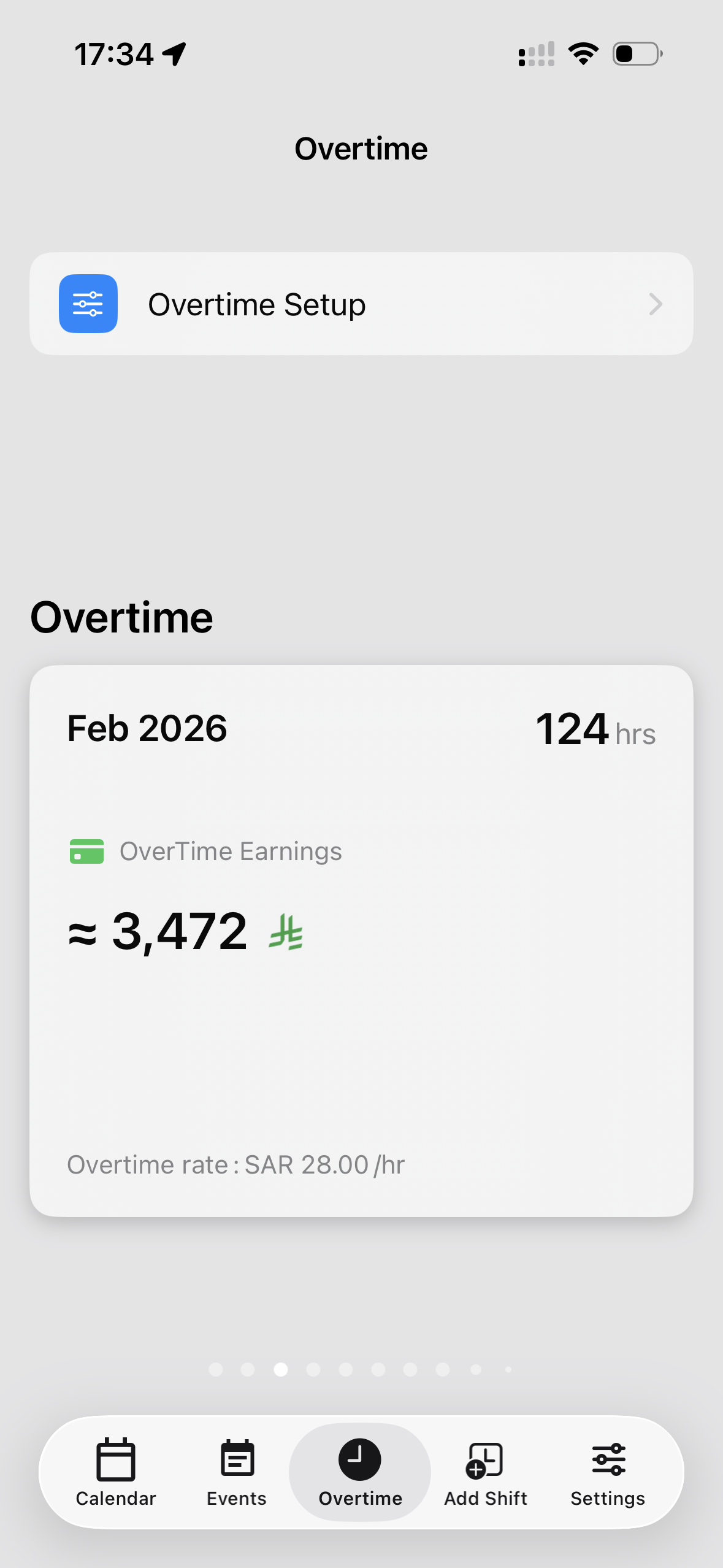
Ready-made patterns and the option to create a custom shift schedule. -
Set the start date of your shift cycle
Enter the start date for your chosen work pattern. Use the date of the first day in the cycle so that shifts and days off appear on the correct dates.
For example, if your work cycle starts on the first day of the month, select that date as the start of the pattern. If it starts on another date, use its actual start date.
-
Change a shift when one day's work hours change
If your shift changes on a specific day, select that day and replace its shift. Your other scheduled days stay in place.
The image shows one night shift changed to an evening shift, with the other days in the pattern unchanged.
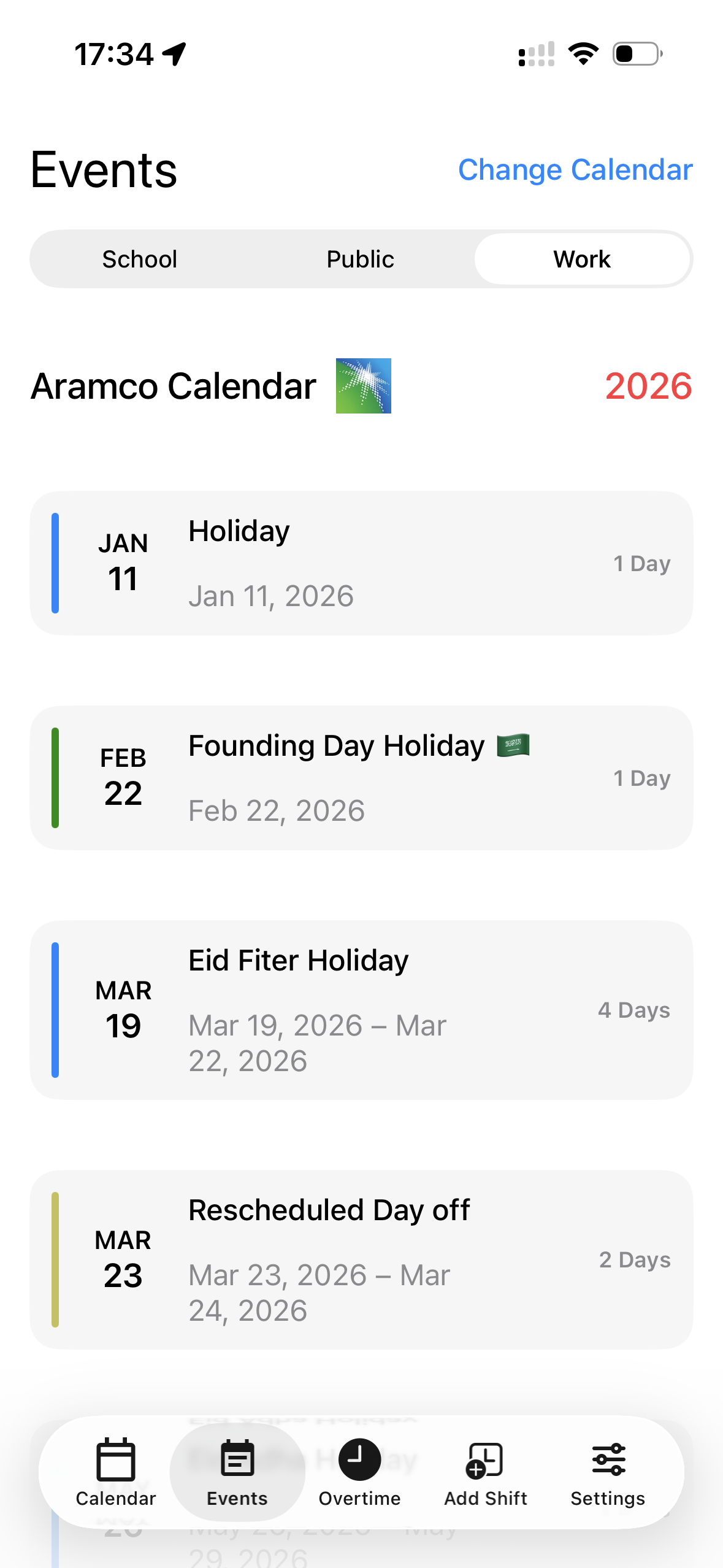
Change an individual shift when your work hours change.
Start organizing your shift schedule
See your work shifts, days off, and personal events in one calendar.